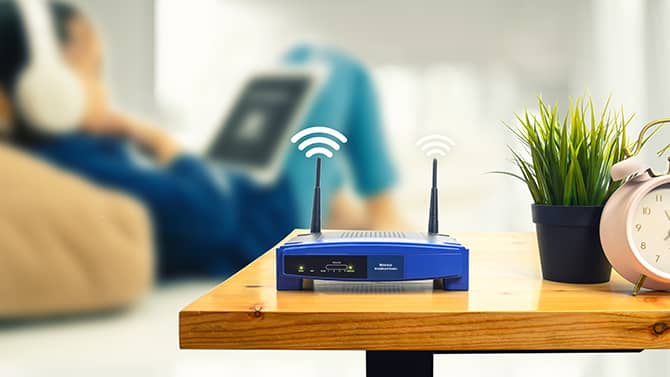
Getting your home online shouldn’t feel like deciphering an arcane manuscript. With a clear plan and the right equipment, a seamless internet connection is within reach. This broadband setup guide will walk you through every step—no technobabble, just practical pointers.
Assess Your Needs and Options
Every household’s digital usage is unique. Morning video calls, evening 4K streaming, or incessant online gaming—pinpoint what matters most.
- Bandwidth demands: More devices and high‑definition content require heftier throughput.
- Upload vs. download: Remote work and cloud backups hinge on robust upload speeds.
- Budget constraints: Factor in installation fees, monthly costs, and potential hardware purchases.
Armed with this intel, you can select a plan that aligns with your lifestyle rather than overpaying for superfluous speed.
Choosing the Right Provider
Your locale determines available technologies: fiber, cable, DSL, fixed wireless, or 5G home internet.
- Fiber‑to‑the‑home (FTTH): Symmetric speeds and minimal latency—ideal for heavy users.
- Cable broadband: Ubiquitous and generally fast, though speeds may dip during peak hours.
- DSL: Economical and widely available, but performance wanes with distance from the exchange.
- Fixed wireless & 5G: Quick deployment without cables, subject to line‑of‑sight constraints.
Consult local coverage maps and crowd‑sourced reviews to distinguish marketing hype from real‑world reliability.
Essential Equipment Checklist
A reliable setup requires more than just a modem. Here’s your gear roster:
- Modem: Translates ISP signals into usable Ethernet data. Match it to your service type (e.g., DOCSIS 3.1 for cable).
- Router: Creates your in‑home network and manages traffic. Dual‑band or tri‑band units with MU‑MIMO technology optimize multiple device connections.
- Ethernet cables: Cat 6 or higher supports gigabit speeds with minimal interference.
- Power backup: A small uninterruptible power supply (UPS) can keep your network alive during brief outages.
Purchasing your own modem and router often yields better performance than rental equipment—and saves rental fees.
Physical Installation
Follow these steps to lay the groundwork:
- Position the modem near the ISP’s entry point—cable jack, phone socket, or fiber terminal.
- Connect the incoming cable (coaxial, RJ‑11, or fiber) to the modem’s WAN port.
- Link the modem to the router using an Ethernet cable.
- Power on both devices. Wait for status lights to stabilize before proceeding.
Keep the hardware elevated and unobstructed for optimal heat dissipation and signal propagation.
Router Configuration
Now for the digital alchemy:
- Access the admin portal: Enter the router’s IP (commonly 192.168.1.1) in your browser.
- Set a custom SSID: Choose a unique network name to avoid confusion with neighbors.
- Define a strong passphrase: Mix letters, numbers, and symbols—at least 12 characters.
- Enable WPA3 encryption: If supported, this newest standard fortifies your network against intruders.
- Separate guest access: Create a guest SSID to isolate visitor devices from your primary network.
Save changes and reboot the router to activate your configurations.
Optimizing Wi‑Fi Coverage
Wireless reach can be fickle. Improve coverage with these tactics:
- Central placement: Situate your router in an open, elevated spot at your home’s fulcrum.
- Avoid interference: Keep the router clear of microwaves, cordless phones, and thick walls.
- Channel selection: Use a Wi‑Fi analyzer app to select the clearest 2.4 GHz and 5 GHz channels.
- Mesh solutions: For large or multi‑story homes, deploy mesh nodes to eliminate dead zones.
These tweaks banish signal shadows and deliver consistent throughput.
Securing Your Network
A secure network is the bedrock of peace of mind:
- Firmware updates: Check monthly for router and modem firmware patches.
- Disable WPS: Though convenient, Wi‑Fi Protected Setup can be exploited.
- MAC filtering: Whitelist known devices to block unauthorized access.
- Firewall settings: Enable built‑in firewalls and consider a network‑level VPN for added privacy.
Security is not prosaic; it’s essential for protecting data and preserving network performance.
Troubleshooting Common Issues
Even the best-laid plans encounter hiccups. Here’s a quick reference:
- No internet light on modem: Verify cable connections and contact your ISP.
- Wi‑Fi dropouts: Reboot the router, change channels, or reposition the unit.
- Slow speed tests: Test via Ethernet, inspect for rogue devices, and reboot hardware.
- ISP authentication errors: Double‑check login credentials or request a reset from your provider.
A methodical approach prevents unnecessary resets and support calls.
Maintenance and Monitoring
Sustained performance demands vigilance:
- Regular reboots: A monthly power cycle clears memory leaks and cache buildup.
- Speed monitoring: Schedule bi‑weekly tests to ensure you’re receiving contracted rates.
- Device audits: Periodically review connected devices and revoke access for unfamiliar MAC addresses.
A modicum of upkeep keeps your network agile and responsive.
This broadband setup guide demystifies the process of bringing high-speed internet into your home. By following these structured steps—assessing needs, choosing technology, installing hardware, and fine-tuning configurations—you’ll enjoy a robust, secure, and lightning-fast connection.
About the Author